Settings Configuration
To configure the Auxilium SharePoint Document Management settings to enable access to a SharePoint Site, please follow the steps below:
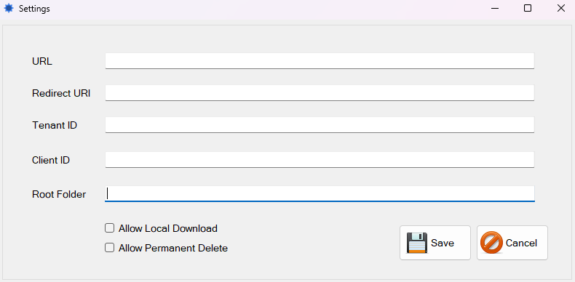
- URL: Enter the SharePoint Site URL
- Redirect URI: Enter the URL http://localhost:5000
- Tenant ID: Enter the Azure Directory (tenant) ID
- Client ID: Enter the Azure Application (client) ID
- Rooter Folder: Enter the preferred Root Document Folder, this will be the start folder for the application, and it will not be possible to navigate upwards beyond this folder. This should not be a web accessible URL but just a simple path i.e:
- /sites/TestSite/Shared Documents/Doc Root Test Folder
- Allow Local Download: Tick to enable downloading of files
- Allow Permanent Delete: Tick to enable permanent deletion of files
- Save: Click the Save button to apply the settings
- Cancel: Click Cancel button to exit the settings screen
Auxilium Software - SharePoint Document Management Demo
The Auxilium SharePoint Document Management Application provides Root Folder access to a SharePoint Site. The Demo Application includes the following functionality:
- Hierarchical folder tree navigation with lazy loading. Files and folders are displayed in alphabetical order with correct shell icons per file type.
- New files (Word, Excel, PowerPoint, Text) and folders can be created directly within the explorer via the right-click context menu.
- File and folder rename is supported via right-click, toolbar button, and the F2 keyboard shortcut.
- Files can be uploaded by dragging from Windows Explorer, via the toolbar Upload button, via right-click, or using Ctrl+U.
- Downloads are available via right-click, toolbar, and Ctrl+S, with a configurable allow/disallow local downloads setting.
- Drag-and-drop is supported between the ListView and TreeView, and files can be dragged out of the ListView directly into Windows Explorer.
- File and folder deletion supports multi-select, the Delete key shortcut, and presents a confirmation prompt with the option to send items to the Recycle Bin or permanently delete. When Allow Permanent Delete is enabled, pressing Delete (or right-click/toolbar delete) sends items to the Recycle Bin; Shift + Delete permanently deletes without sending to the Recycle Bin.
- Progress bars are shown during file uploads, downloads, and folder structure generation. The Allow Local Download setting can be disabled to prevent users from downloading files.
- The ListView displays additional columns for file size and last modified date, with columns resizing automatically when the form is resized. The status bar shows the current file/folder count and total directory size.
- A standard example folder structure can now be generated for new clients, and existing client folder structures can be aligned to the standard template via the folder structure generation tool.
Key Input:
ListView
-
F2 — Rename selected file or folder
-
F5 — Refresh current location
-
Delete — Delete selected item(s)
-
Enter — Open file in browser / navigate into folder
-
Ctrl+S — Download selected file
-
Ctrl+U — Upload files
-
Ctrl+A — Select All
TreeView:
-
F2 — Rename selected folder
-
F5 — Refresh current location
-
Delete — Delete selected folder